

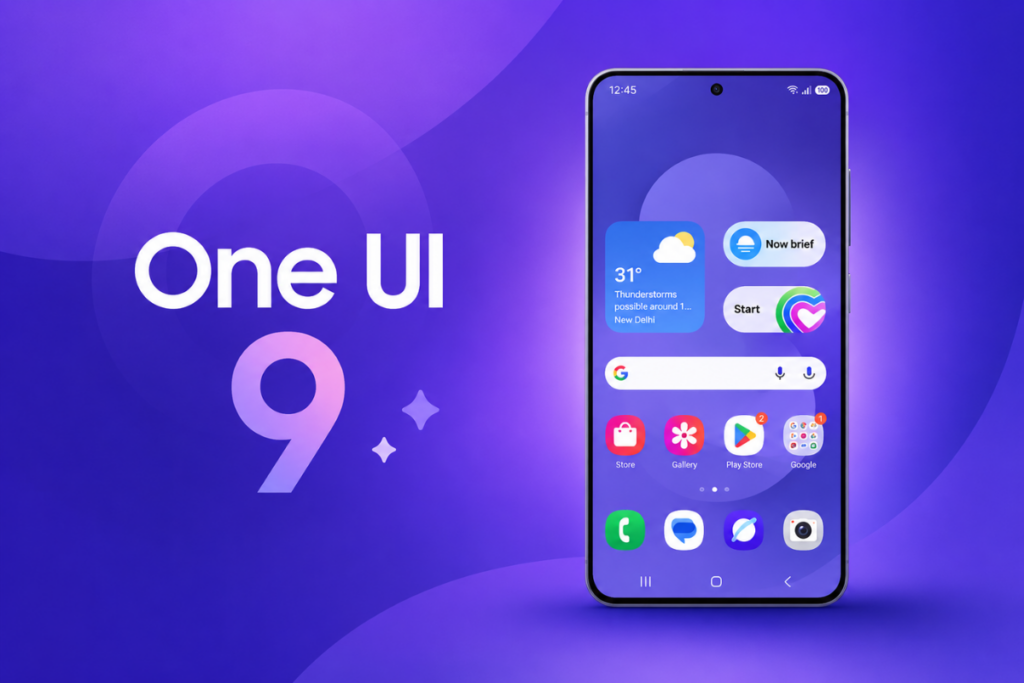
Samsung has surprised users by rolling out the One UI 9 beta sooner than many expected, especially with a lot of attention still on One UI 8.5. Built on Android 17, the new beta feels like a clear signal that Samsung is moving faster this cycle. For anyone who remembers the slower rollout of One UI 7, this is a welcome change.
At first glance, One UI 9 does not look like a massive redesign. Instead, it focuses on refinement, polish, and smoother day-to-day use. That said, there are still plenty of visible changes once you spend some time with it.
Cleaner Design and Subtle Visual Changes
One of the first things users will notice is the cleaner setup process. Samsung has made the initial experience feel more streamlined, and Galaxy AI now appears prominently during setup, which shows how important Samsung considers its AI features.
Once inside the system, the interface feels more polished overall. There is more blur and translucency across different areas, including the passcode screen, quick settings, the Finder, and even the app drawer search bar. These touches give One UI 9 a softer, more modern look that feels closer to stock Android 17 on Pixel devices.
There are also some helpful privacy cues. For example, when an app accesses your location in the background, a blue dot appears in the top-right corner and in the notification panel, making it easier to keep track of what is happening behind the scenes.
Settings and System Improvements
Samsung has also cleaned up several parts of the Settings app. The Samsung account page now looks more organized, and new sections for rewards and subscriptions help users keep track of services like Samsung Care and Galaxy Store purchases.
In several areas, Samsung has removed some of the extra explanations that used to appear beneath settings and submenus. This makes the interface look cleaner, although it may also feel a little less informative in places. On the other hand, Modes and Routines now appears more structured, with clearer categories and better explanations.
Digital Wellbeing and parental controls have been separated into distinct sections as well. This includes more practical controls, such as Play Store filters that can prevent children from downloading age-restricted apps.
Quick Settings Gets a Major Refresh
Quick settings is one of the biggest highlights of the update. Samsung has already improved this area in One UI 8.5, but One UI 9 takes it further.
The brightness and volume sliders are now thicker, and the border styling has been removed. Some people may prefer the old look, but the new design does make the panel feel cleaner. Sound mode and dark mode are also separate now, which gives users more flexibility in arranging the layout.
Another useful addition is the ability to resize the media player. You can now make it much smaller or expand it into a larger card depending on your preference. Samsung has also renamed several options, such as changing “Take screenshot” to “Screen capture,” while power-saving, wireless power sharing, and performance controls have been grouped under a new battery and performance section.
Smoother Animations and Better Motion
One of the best parts of One UI 9 is how much smoother it feels in motion. Samsung has improved several animations across the system, and while the changes are not always obvious at full speed, they become clearer when you pay attention.
Opening widgets, using search, and expanding elements like the settings search bar all feel more fluid. Folder-opening animations have also been refined. App open and close speeds are roughly the same as One UI 8.5, but the overall experience feels more polished and less abrupt.
These are the kinds of changes that do not always stand out in screenshots, but they make a big difference in everyday use.
New Features Across Samsung Apps
Samsung has also added some genuinely useful features in its own apps.
In Game Booster, users can now adjust more settings directly from the game overlay, including bypass charging, screenshot format, and even screen resolution. That makes it much easier to change performance-related options without leaving the game.
The Notes app now includes a new tape-style feature that can be used to cover up sensitive information before sharing a note. It can be customized with different colors, thickness levels, and patterns, making it both practical and visually flexible.
Accessibility also gets a boost with features like Text Spotlight, which enlarges selected text instantly. Samsung has also introduced options to replace swipe actions with a single tap for alarms, calls, and alerts, which could be especially helpful for users who prefer simpler interactions.
Hidden Changes in Native Apps
A lot of the smaller updates are tucked away inside Samsung’s native apps.
The Phone app now formats numbers more neatly by automatically inserting a space after five digits. During calls, it can also show recent call details from the same contact in a small popup.
In Contacts, there is now a shortcut to create a profile card using Creative Studio directly from the edit screen. Gallery has received small design tweaks too, including a colorless Studio icon and a smaller screenshot preview view that opens before full-screen display.
The Files app has also been reorganized. Some categories have changed again, and the downloads category is no longer shown the same way. The storage management page now focuses on essentials, while search settings include a new option to show or hide suggestions.
Network and Labs Features
Samsung has added a few useful tools in Labs and connectivity settings as well.
One of the standout additions is network restriction, which allows users to block specific apps from using Wi-Fi. That means you could, for example, prevent an app like Instagram from loading during work hours while still allowing it to open normally. You can also set a downtime, after which access resumes automatically.
Another useful Labs feature lets users hide split-screen app handles, creating a cleaner multitasking view. It is a small change, but one that improves the overall look of the interface.
What’s Missing So Far
Not every feature makes it into the beta, and a few things users were hoping for are still absent. Native app lock is still missing, and there is no network speed indicator in the status bar yet.
Some features have also been removed or moved elsewhere. The option to wake Bixby while media is playing is gone, Finder search customization has been moved into settings, and some camera options now live inside Camera Assistant.
Secure Folder has remained mostly unchanged, although it now includes more auto-lock timing options. On the downside, some features from earlier leaks, like the new warranty and care app, were not visible in this beta.
Final Thoughts
Overall, One UI 9 feels less like a dramatic redesign and more like a thoughtful refinement of Samsung’s software experience. The focus is clearly on smoother performance, cleaner visuals, and practical improvements that make daily use better.
Some of the most requested features are still missing, but this is only the first beta, so more changes may still come. For now, One UI 9 already looks like a solid step forward one that prioritizes polish, usability, and a more modern feel.